
App area
Profile
Your profile picture, permissions, and account privacy and security features.
In Profile, you manage your profile picture, permissions, and your account’s privacy and security features.
Profile picture
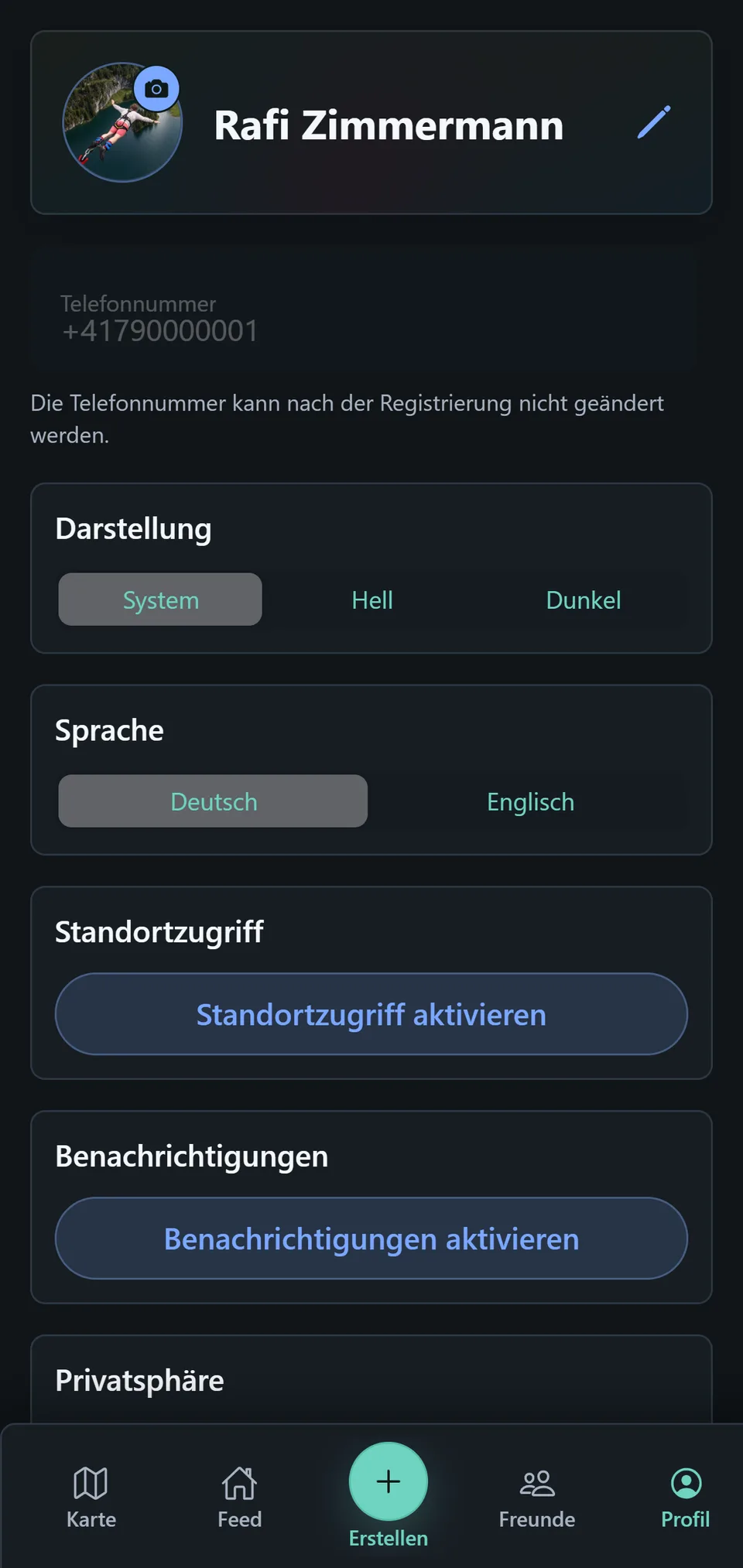
Tap the camera icon on your profile picture to change and adjust it. If you have no profile picture yet, the icon is a plus and you choose an image first.
In Adjust profile picture, you set the circular crop. Drag the image into place and zoom with two fingers or with − and +. The two arrow buttons at the far left and far right rotate the image by 90 degrees each, in case it lies on its side. Fill resets zoom and position so the image fills the circle again, centred. The small preview at the top left keeps showing the result.
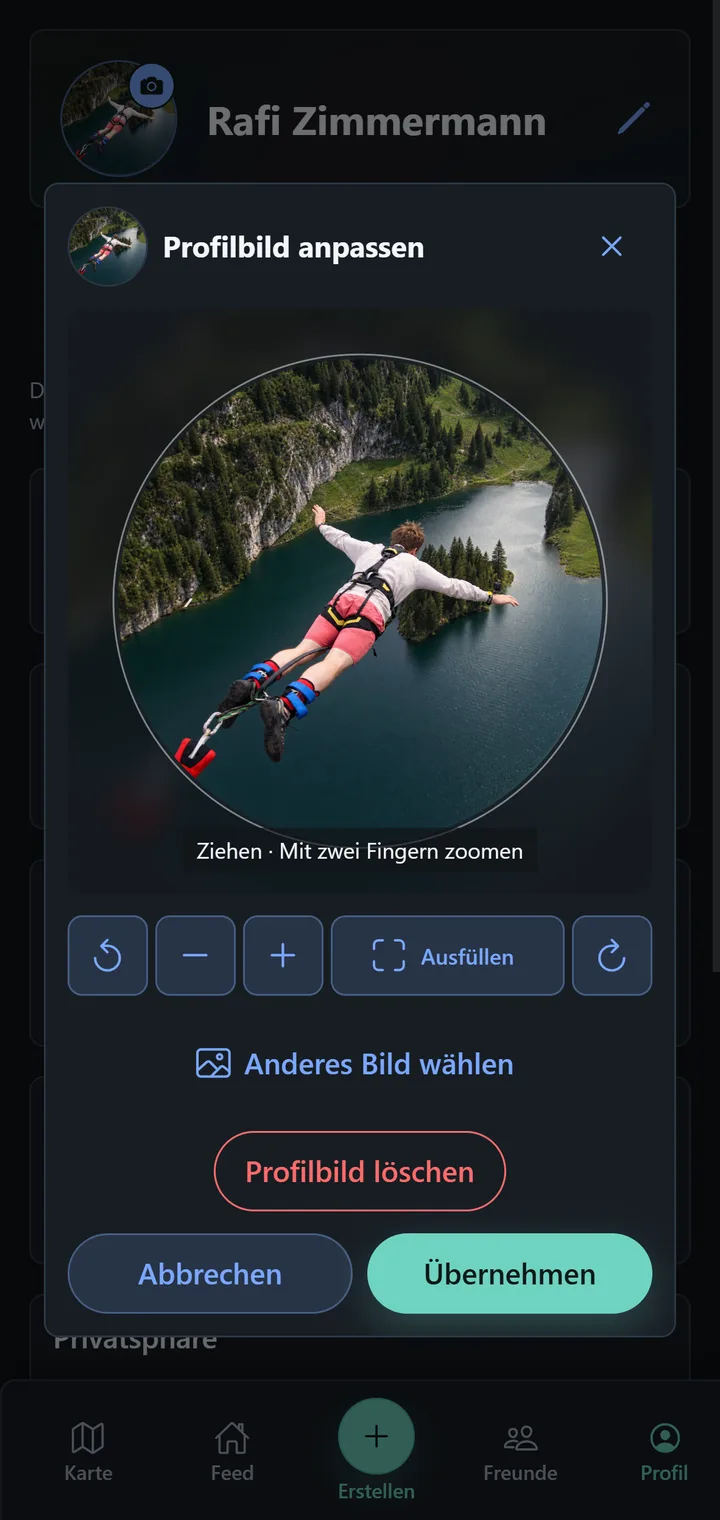
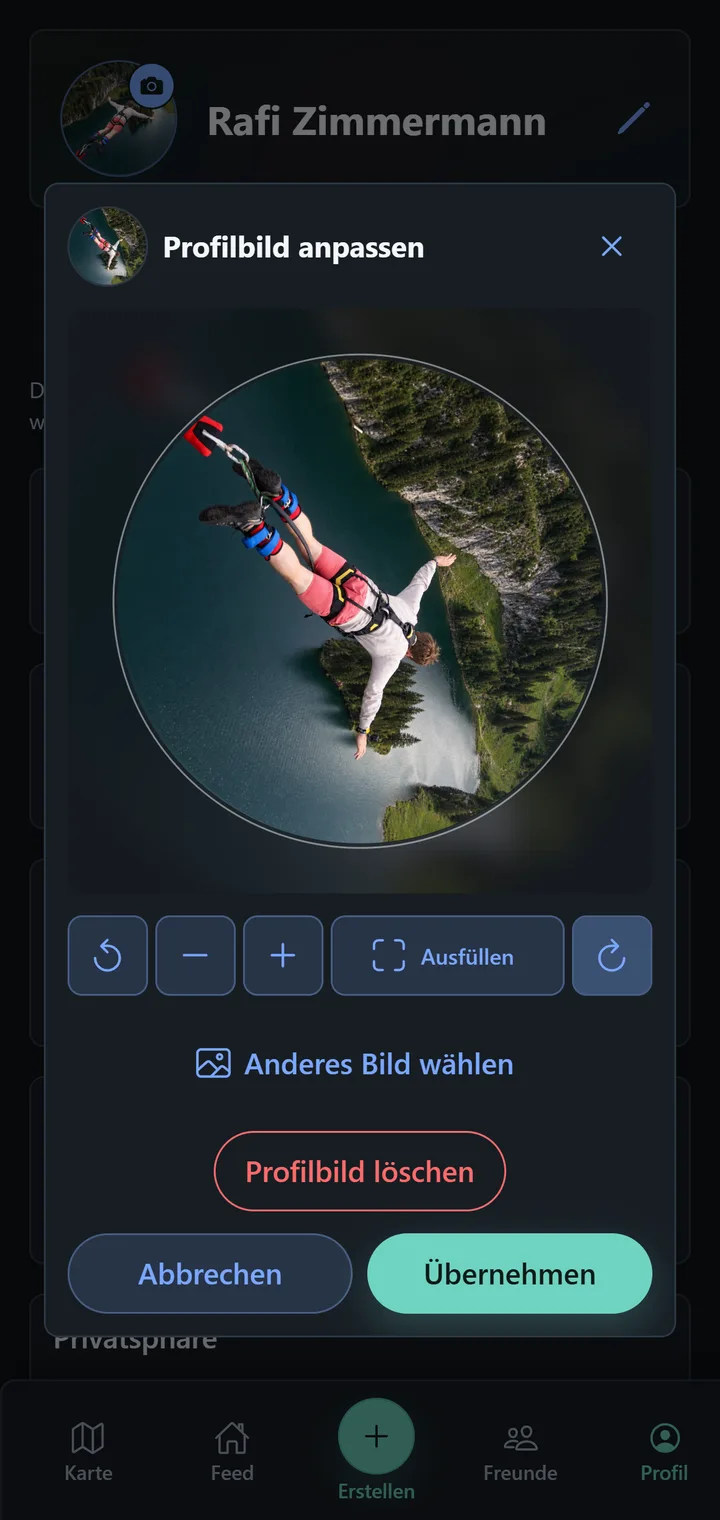
Choose another image replaces the image, and Delete profile picture removes it. Apply saves the crop; Cancel leaves everything as it was. Your Profile then shows the new picture.
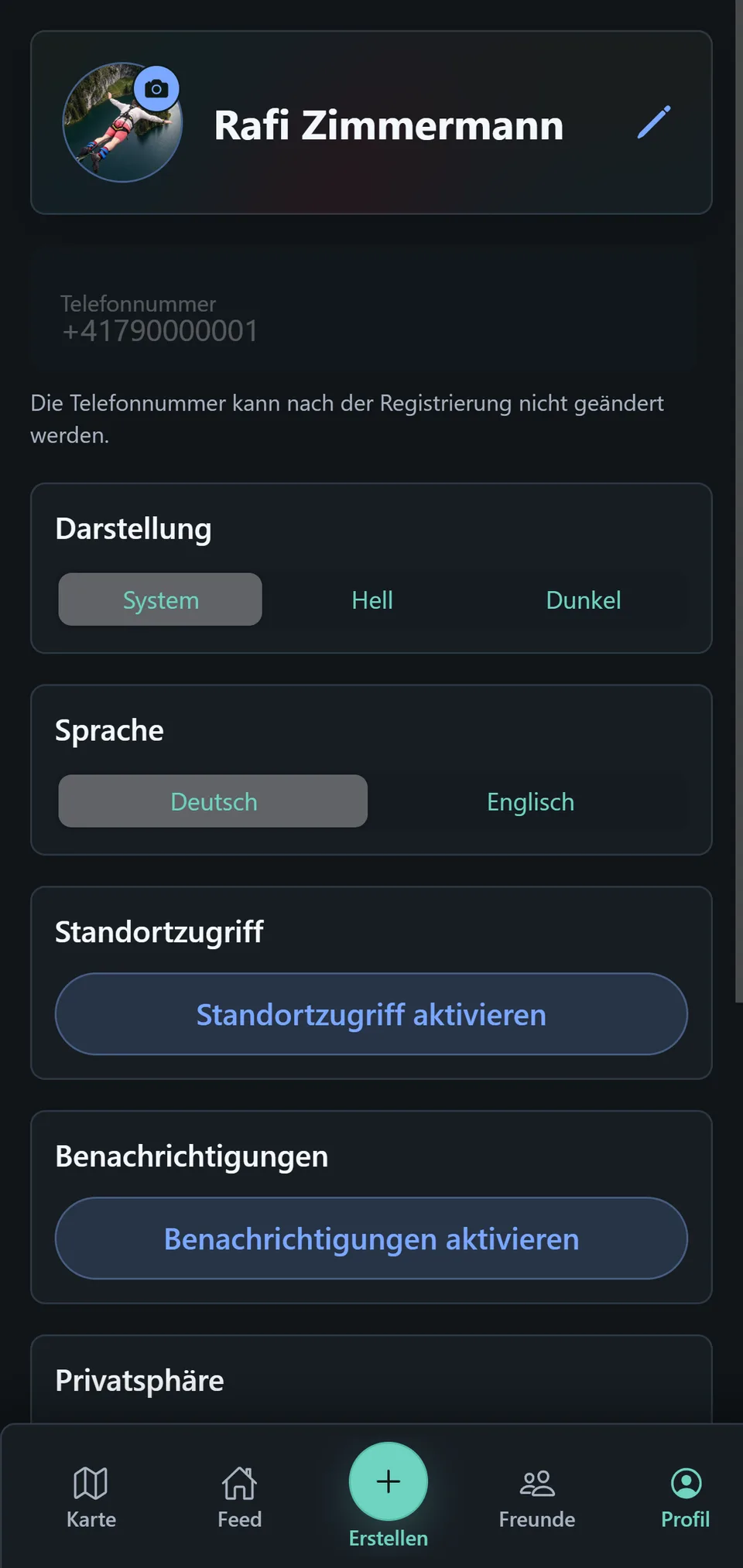
PTB automatically reduces the image to a maximum of 1024 × 1024 pixels. Other people see your profile picture only in the circular crop also used in the Feed, Friends, and plans. There they can tap it to view it enlarged.
Location access
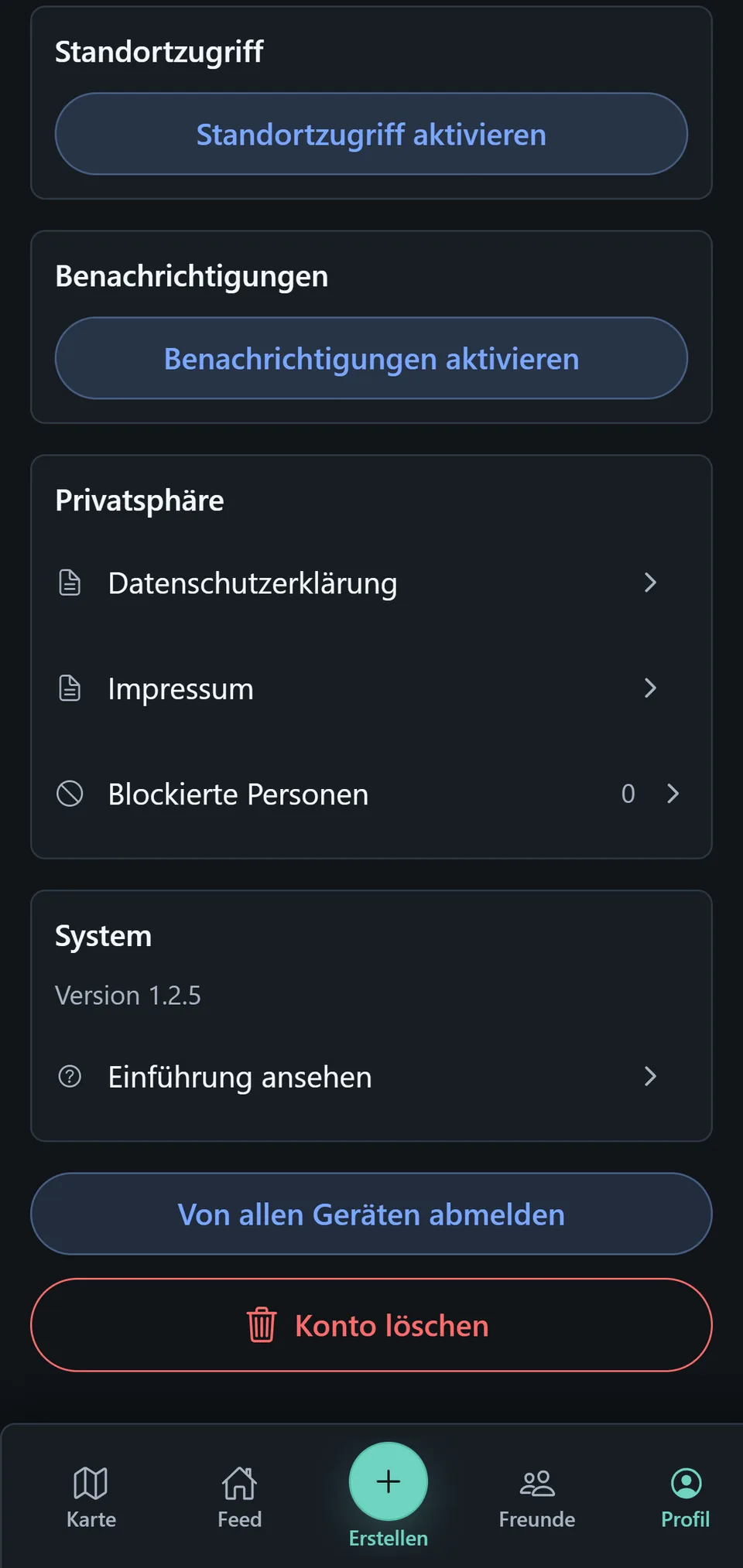
PTB uses your location to centre the Map on your current position and help you find your way around nearby plans. You can withdraw location access at any time in your phone’s system settings. Locations explains the difference between your device location and a place attached to a plan.
Notifications
Notifications allow PTB to inform you about relevant events in the app. This area is still being developed, so the available notifications and settings may change in upcoming versions.
Privacy
The Privacy area is in the lower part of Profile, directly below Notifications.
Privacy Policy and Legal Notice
Privacy Policy and Legal Notice open the matching page of placetobe.li in the browser, in the language you have set in PTB. On the website, both pages are also linked at the very bottom in the footer: Privacy Policy and Legal Notice.
Blocked users
Under Blocked users, you find everyone you have blocked. Learn more about blocking →
System
View introduction
View introduction starts onboarding again. It lets you revisit PTB’s key features at any time without resetting your account.
Log out from all devices
Log out from all devices invalidates your account’s existing sign-in sessions. You will also be signed out on other devices and need to sign in again. This is especially useful if you have lost a device or suspect that someone has accessed your account.
Delete account
When you delete your account, your plans and friendships, among other things, are deleted. If you want to use PTB again later, you can create a new account at any time.