
App area
Map
Discover, filter, and open plans that have a place.
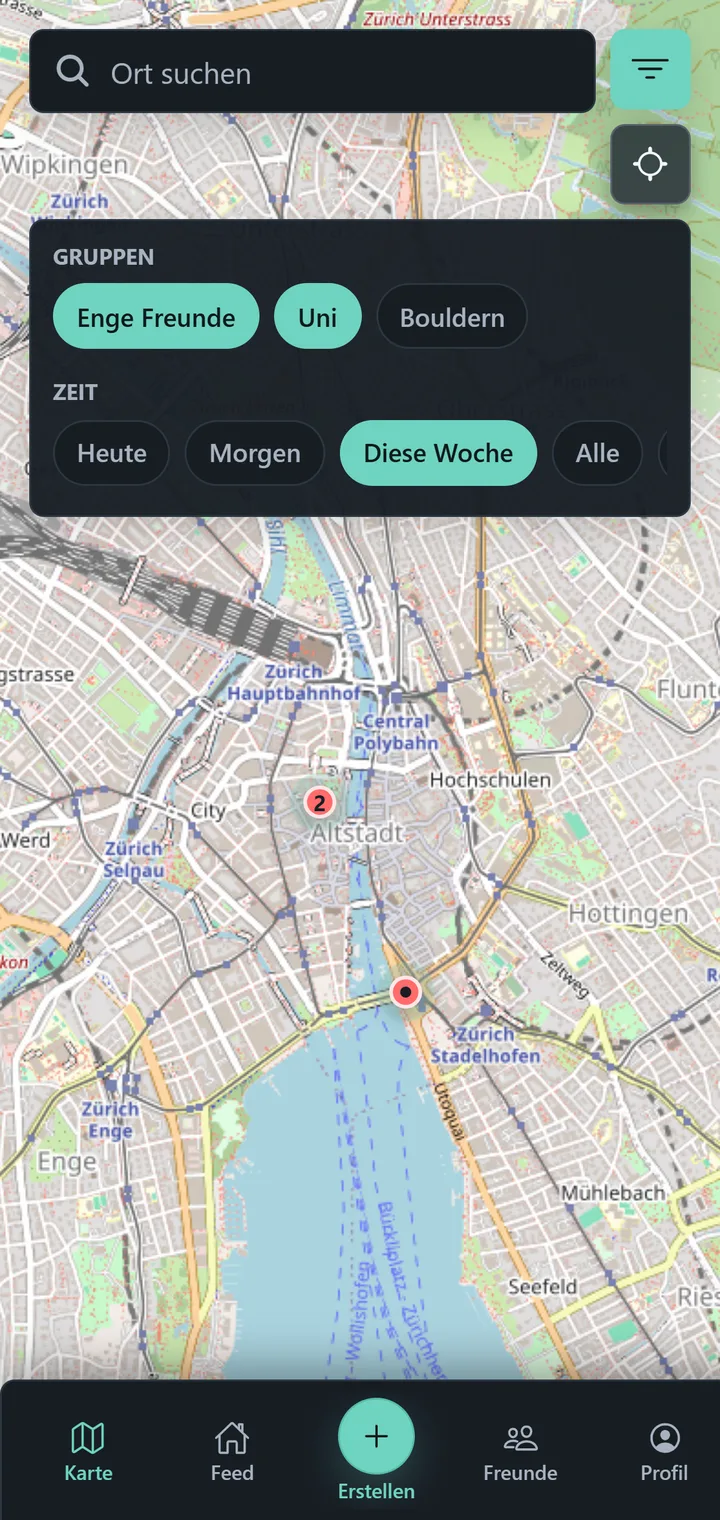
The Map shows visible plans at their saved place. Search for a place, move around the map, or use Recenter map to return to the starting view.
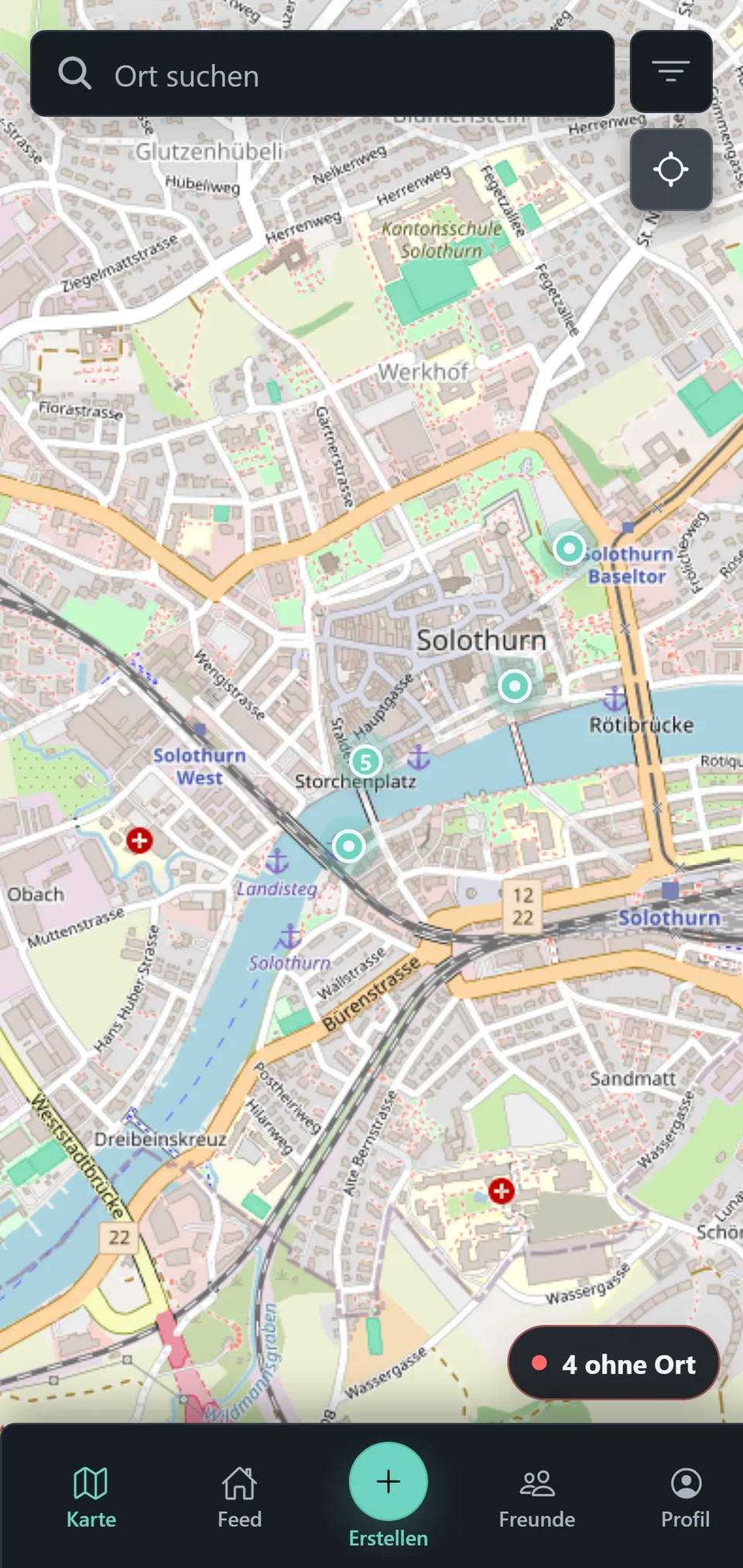
Open a plan
Tap a marker to reveal its plan card. It shows the title, time, place, and your signal; from there you can open the full plan.
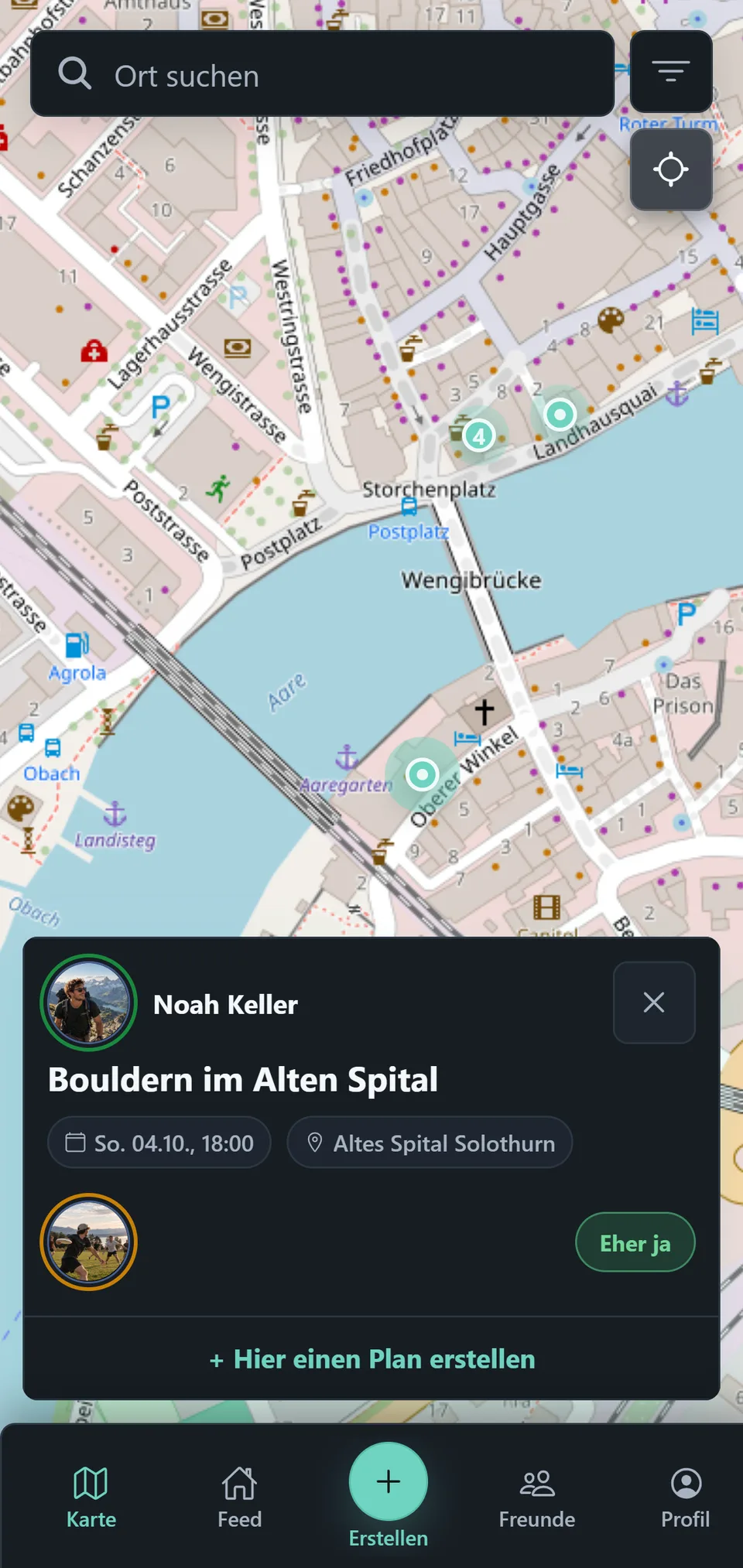
Several plans in one marker
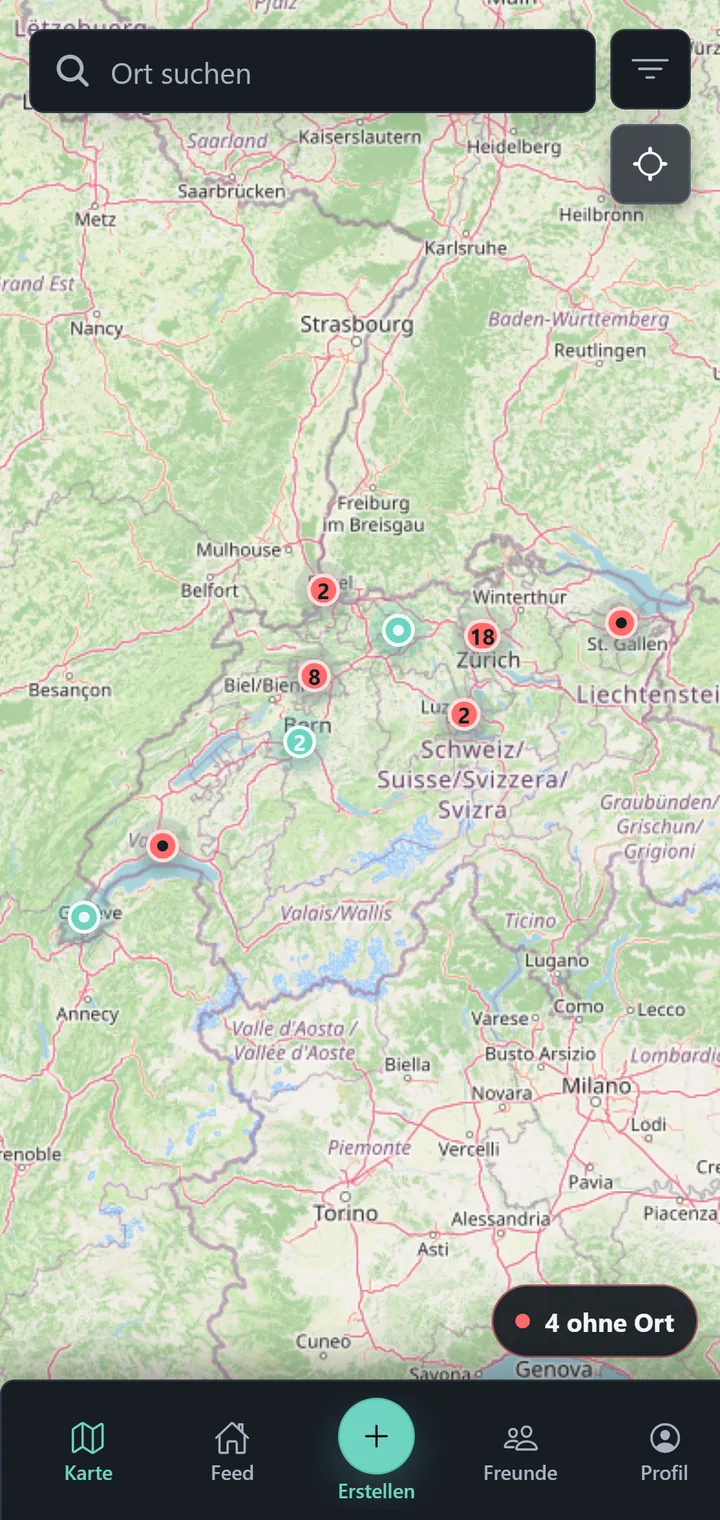
When plans are so close together on the Map that their markers would overlap, PTB combines them into one marker. The number in the marker tells you how many plans it currently contains. What counts is the distance on the screen, roughly one marker width (36 screen pixels). The grouping therefore depends on the zoom level; it does not mean the plans take place at the same spot.
The colour follows the plan state from New & Changed: a marker is teal while you have seen every plan it contains, and red as soon as at least one of them is new or changed.
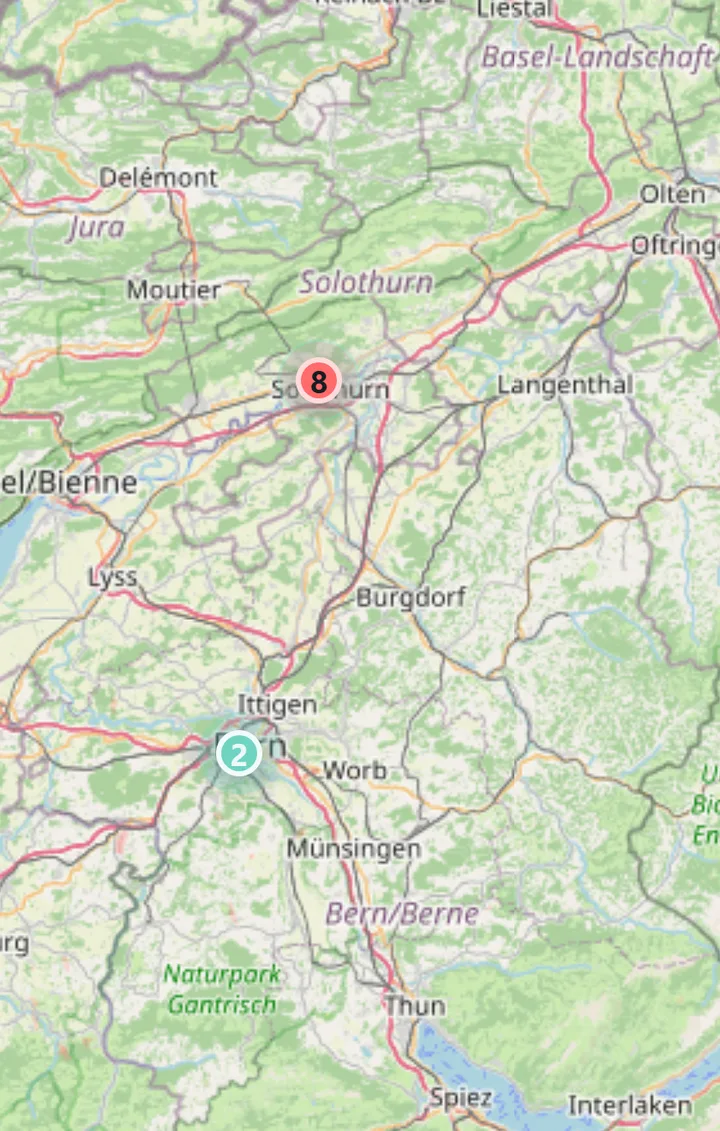
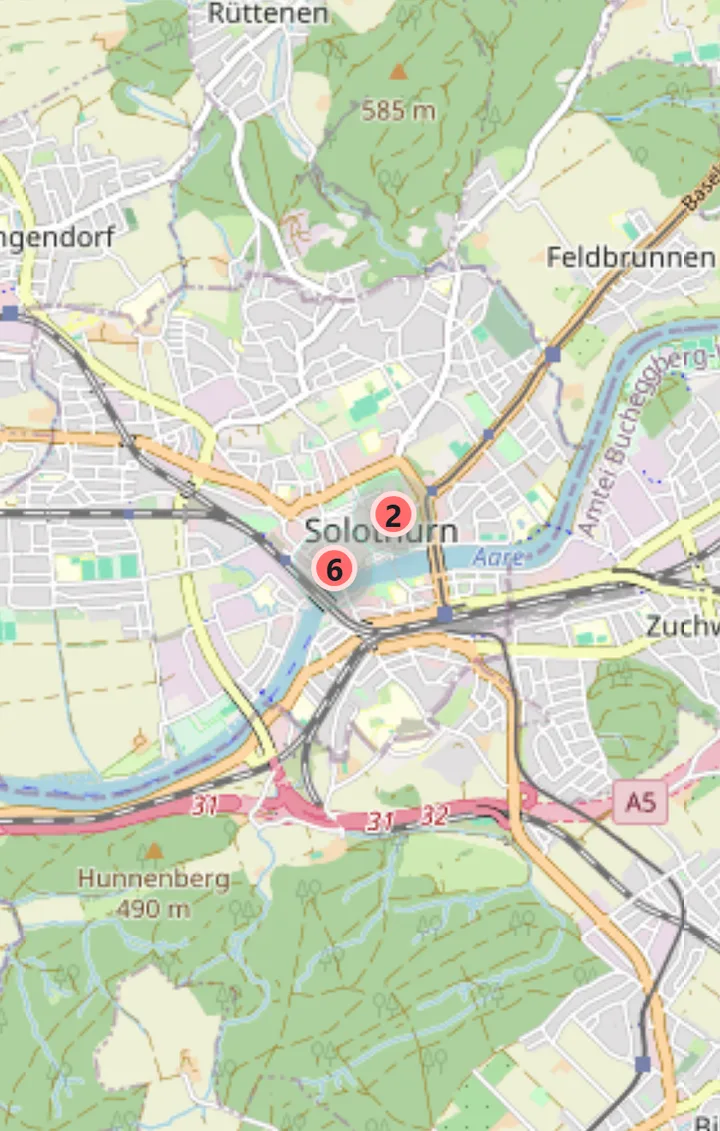
Tapping zooms while that helps
Tap a marker with four or more plans, and the Map zooms in exactly far enough for the group to split. Grouping is recalculated after every zoom. A large marker therefore often breaks apart step by step rather than all at once: in the example, eight plans first become six and two, then five and three single plans, then four and one. Just keep tapping the marker you are interested in.
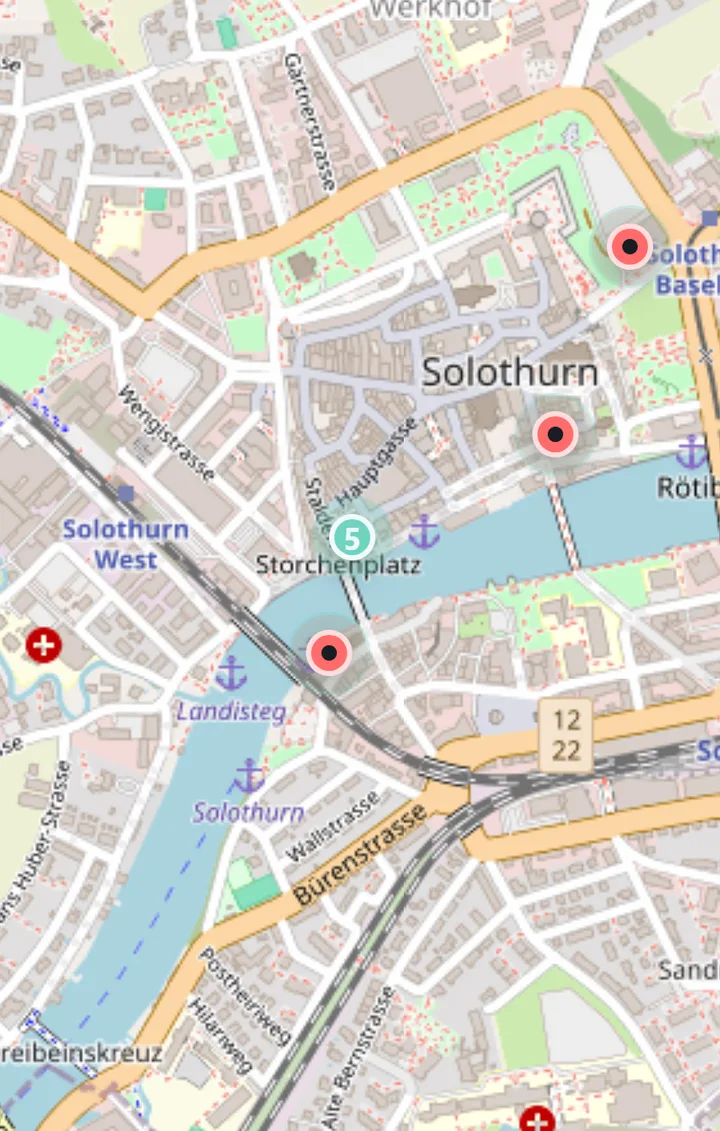
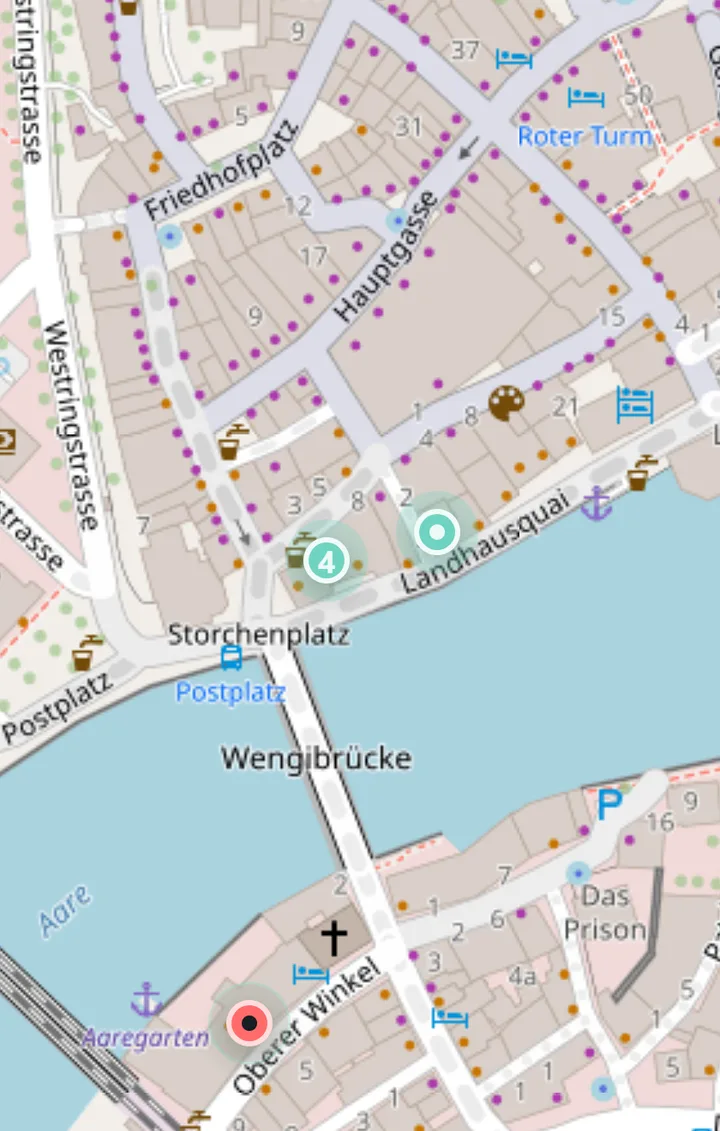
The five-plan marker is teal because nothing new is left inside it; the new plans separated into their own red markers while zooming.
When zooming no longer helps
If the plans are at exactly the same spot, or so close that even the deepest zoom level cannot separate them, PTB does not zoom pointlessly. Instead, the plan cards of all plans in that marker open. Use the arrows or swipe to move between them; 1 / 4 plans here shows where you are. The X, or another tap on the marker, closes the plan cards again.
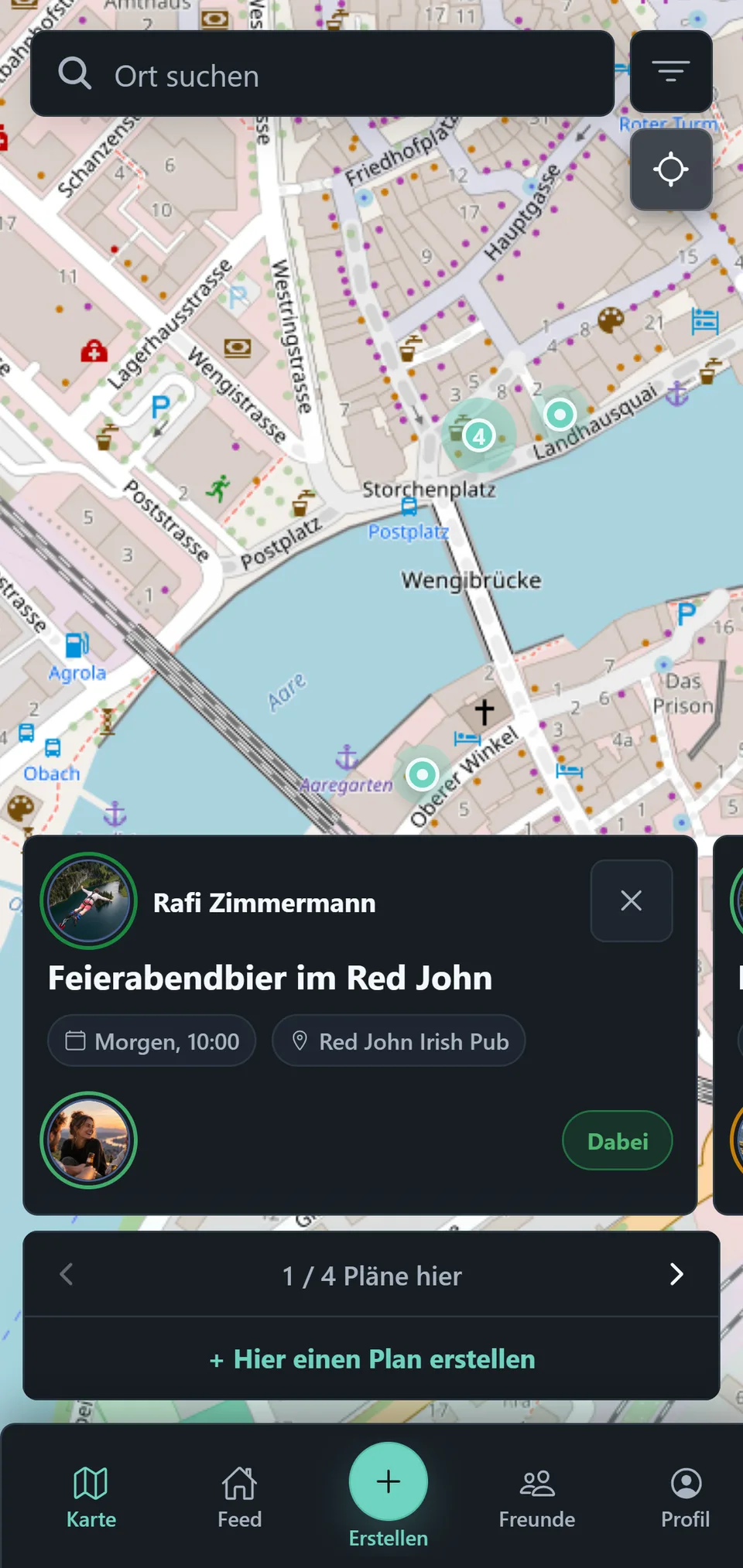
Markers with two or three plans always open their plan cards right away, even if zooming could separate the plans. To see them apart on the Map, zoom in by hand.
Create a plan directly on the Map
Tap an empty spot on the Map. PTB asks Idea for here? and shows the nearest address. Create plan opens the form with exactly that point already set as the plan place. This lets you fix a meeting point precisely even when it has no name of its own, such as a spot on the riverbank or in a park.
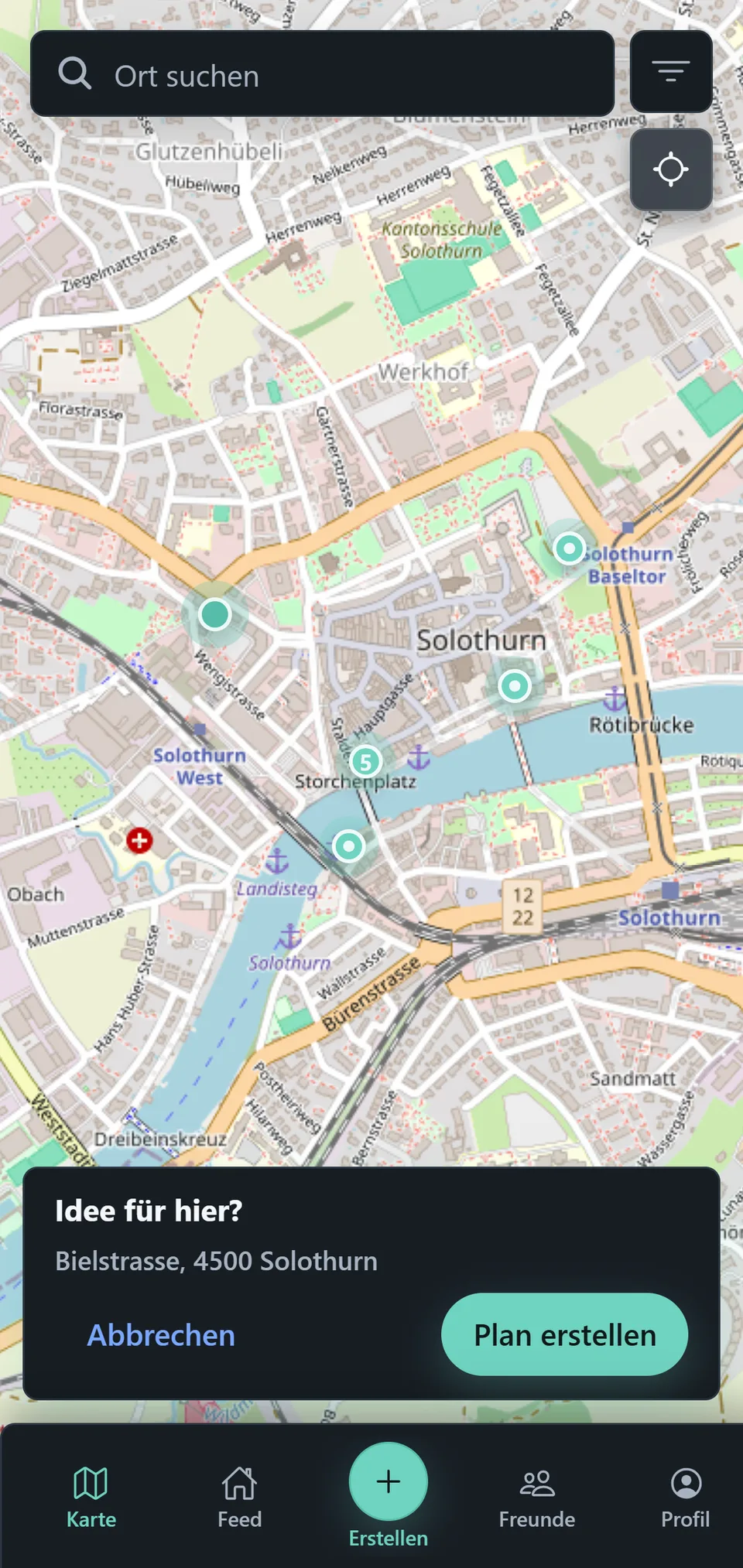
If a new plan should take place where an existing one does, open that plan’s card on the Map and tap Create plan here. PTB then uses exactly the same place. Locations shows how it continues in the form.
Filter and keep your bearings
Use Filter to narrow visible plans by time or groups. Zooming out shows how plan places are spread out; Recenter map returns the view.
Locations explains how a place is attached to a plan.