
Concept
Date & Time
A start, an optional end, and a deliberately open date.
PTB lets a plan become specific without fixing it too early. Under When, you can choose a date or leave it as Date TBD.
Set a start
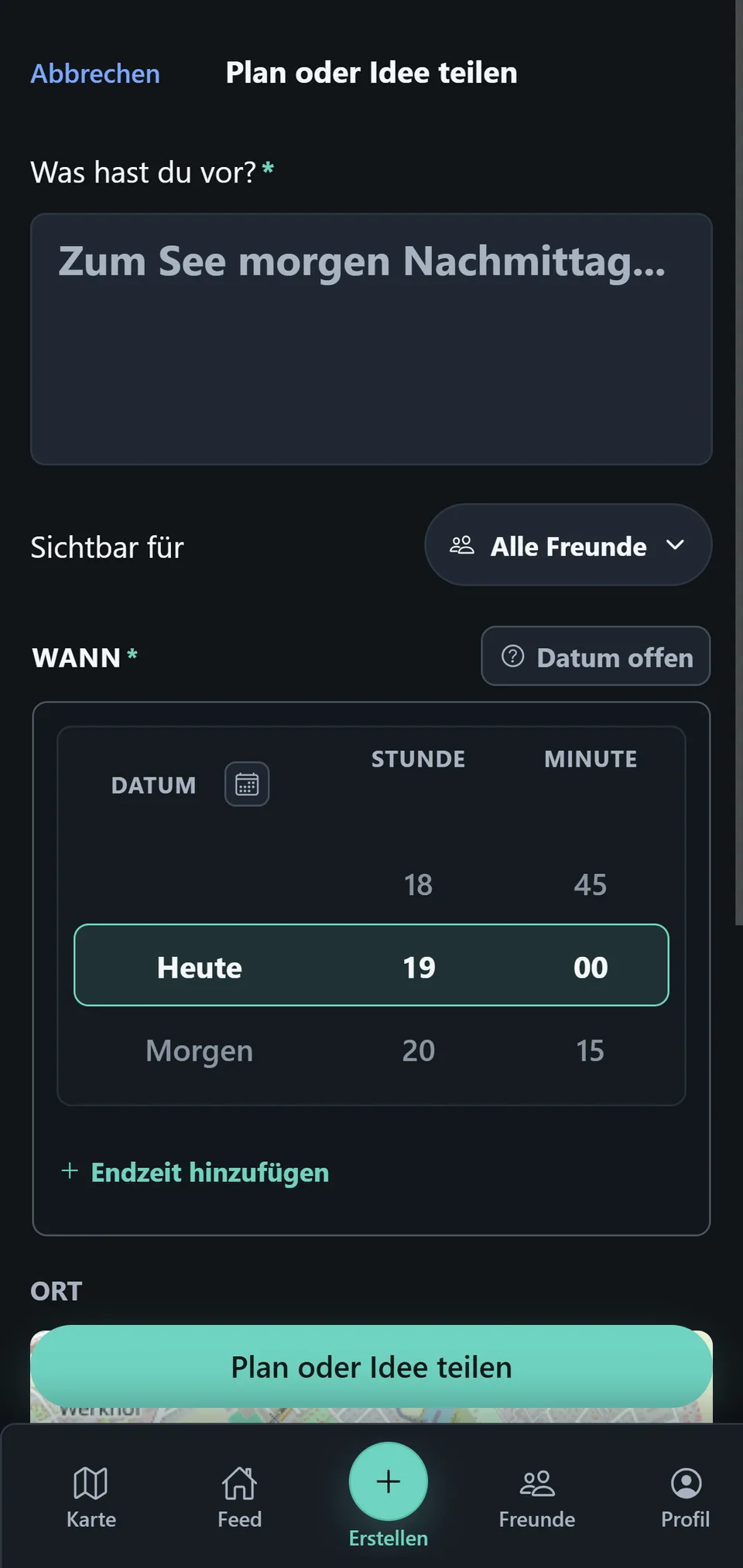
By default, set the active start date and time directly with the Date, Hour, and Minute wheels.
Open the calendar directly
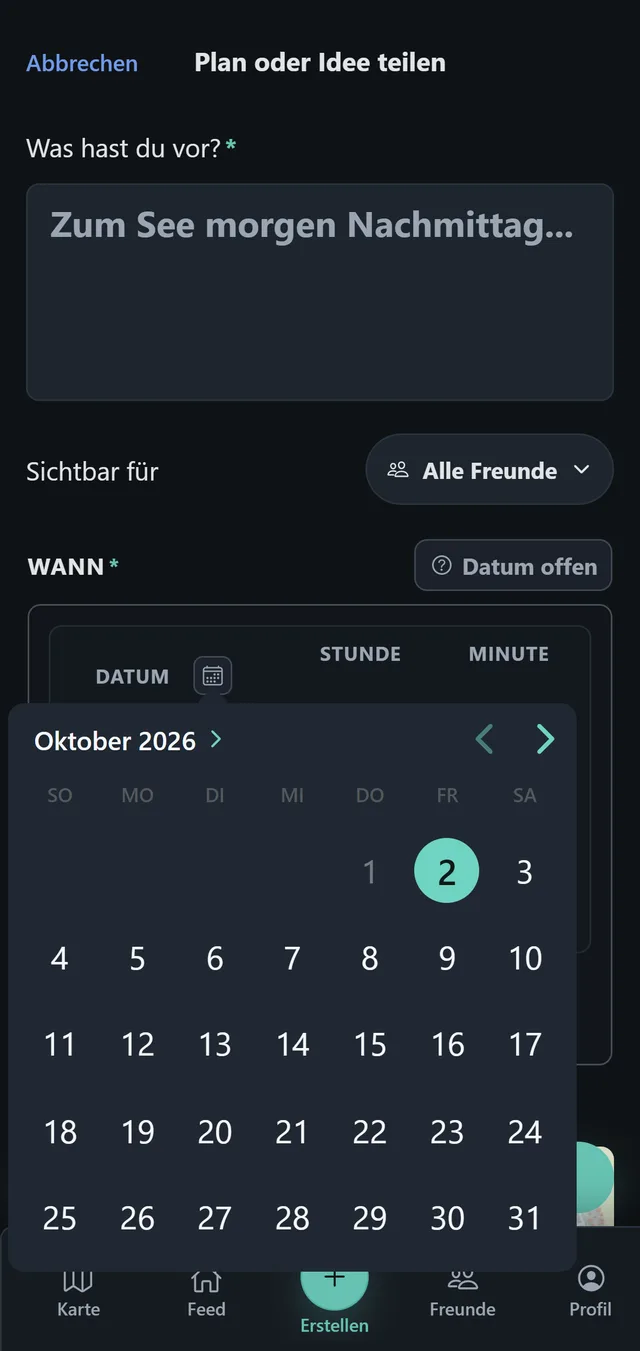
The small calendar icon beside Date opens a calendar overlay. Choose a specific day there to update the date in the active picker. Hour and Minute remain controlled by the wheels.
Add an end
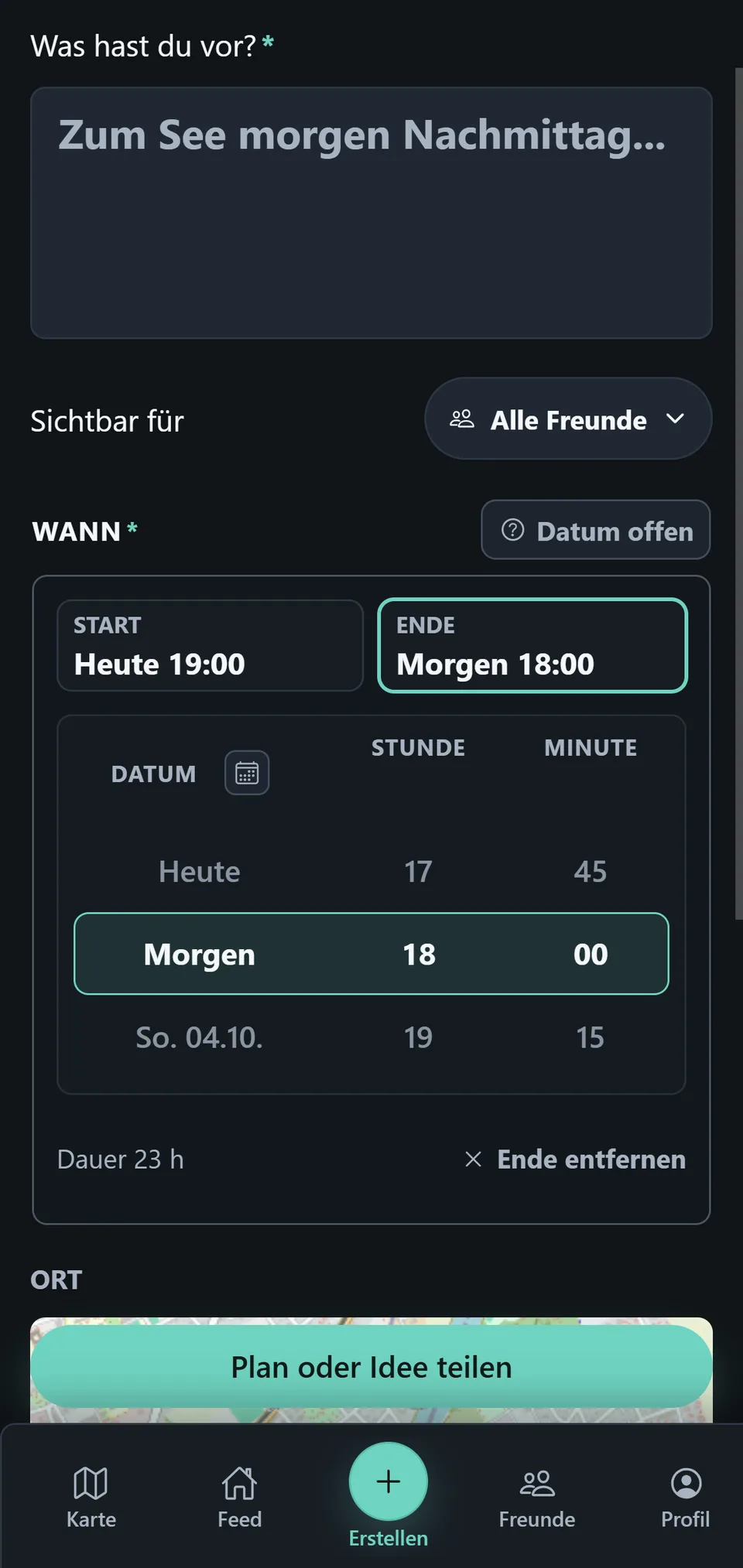
Add end time adds an optional end and switches to its picker. Start and end are selected separately, including a different end date when needed. PTB checks that they form a valid range and does not silently accept an invalid one.
Date TBD
Date TBD deliberately leaves the plan without a concrete start. An end cannot apply without one: if you switch to Date TBD after adding an end, PTB automatically removes that end. When you later choose a concrete start again, you can add an optional end again.