
Concept
Locations
Choose optional plan places and find them later on the Map.
A plan does not need a place. A plan place is optional context. It helps friends understand where something is intended to happen, appears in Plan Details, and puts the plan on the Map.
Where you start a plan
From the Map
When you create a plan directly from the Map, PTB takes the selected map point as the plan place.
With Create
When you start with the regular Create button, no place is selected yet. You can share the plan without one or choose one yourself.
Exactly at a point on the Map
Starting from the Map is the right way when the exact spot matters more than a place name. Tap an empty spot on the Map and choose Create plan under Idea for here?. The form opens with exactly that point as the plan place: under Place, you see the nearest address and the point’s coordinates. The X next to it removes the place again.
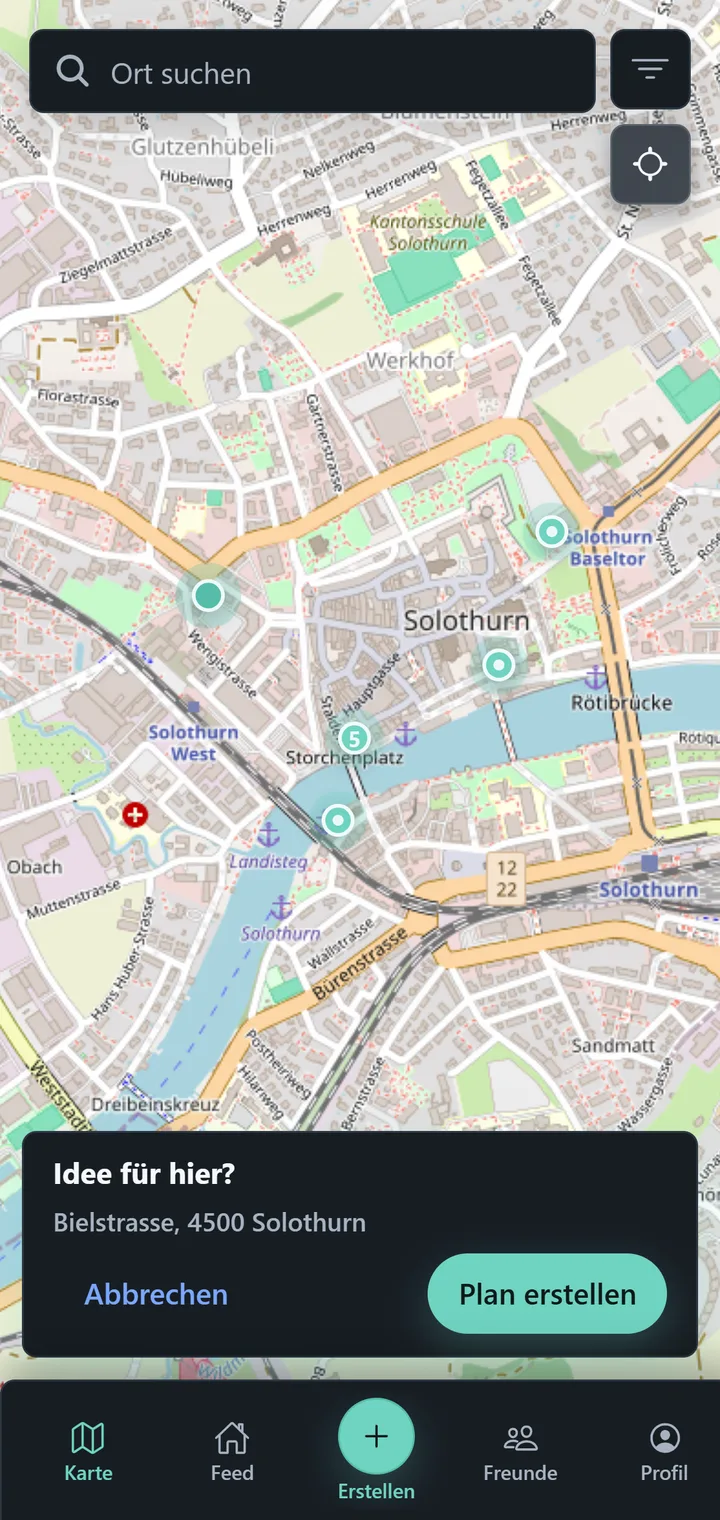
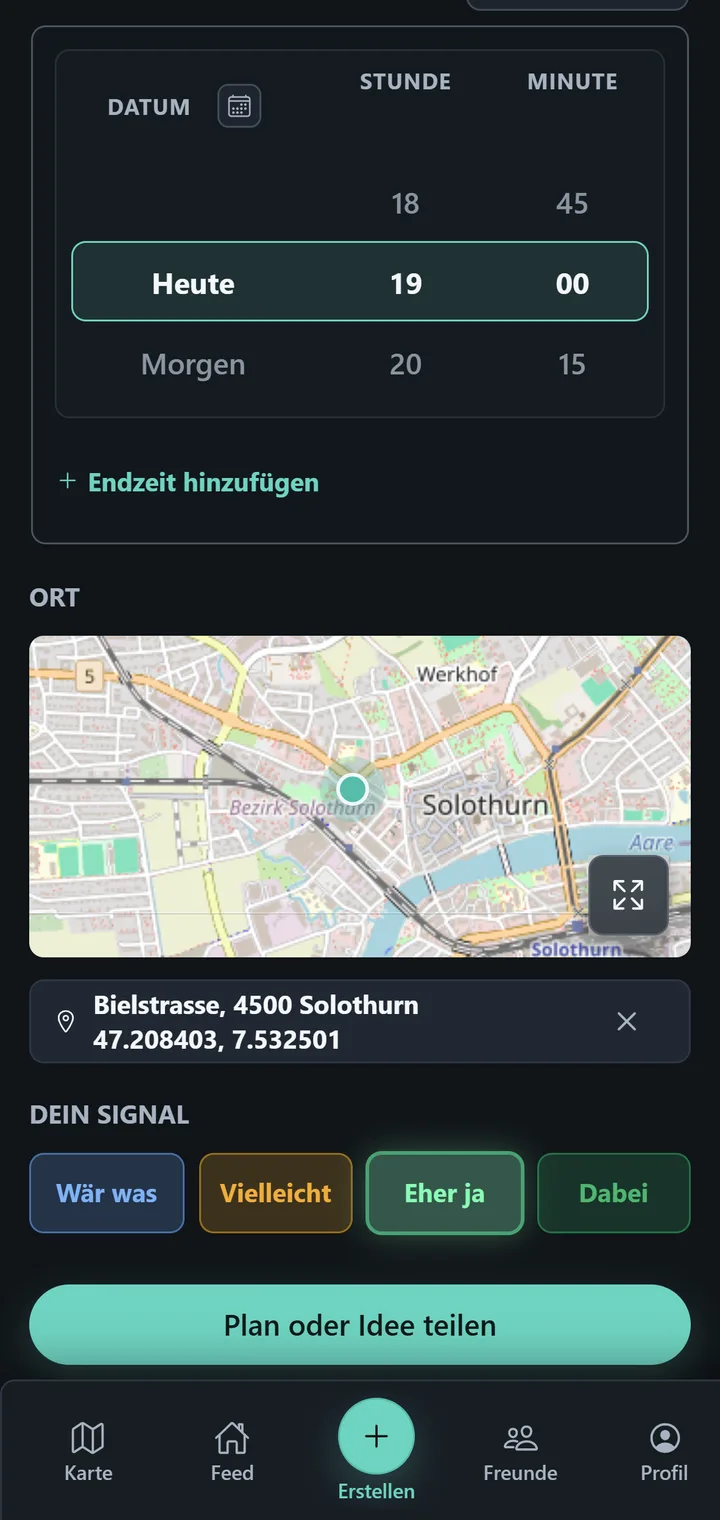
The same applies to Create plan here in a plan card on the Map: the new plan gets exactly the place of the existing plan.
Choose a place
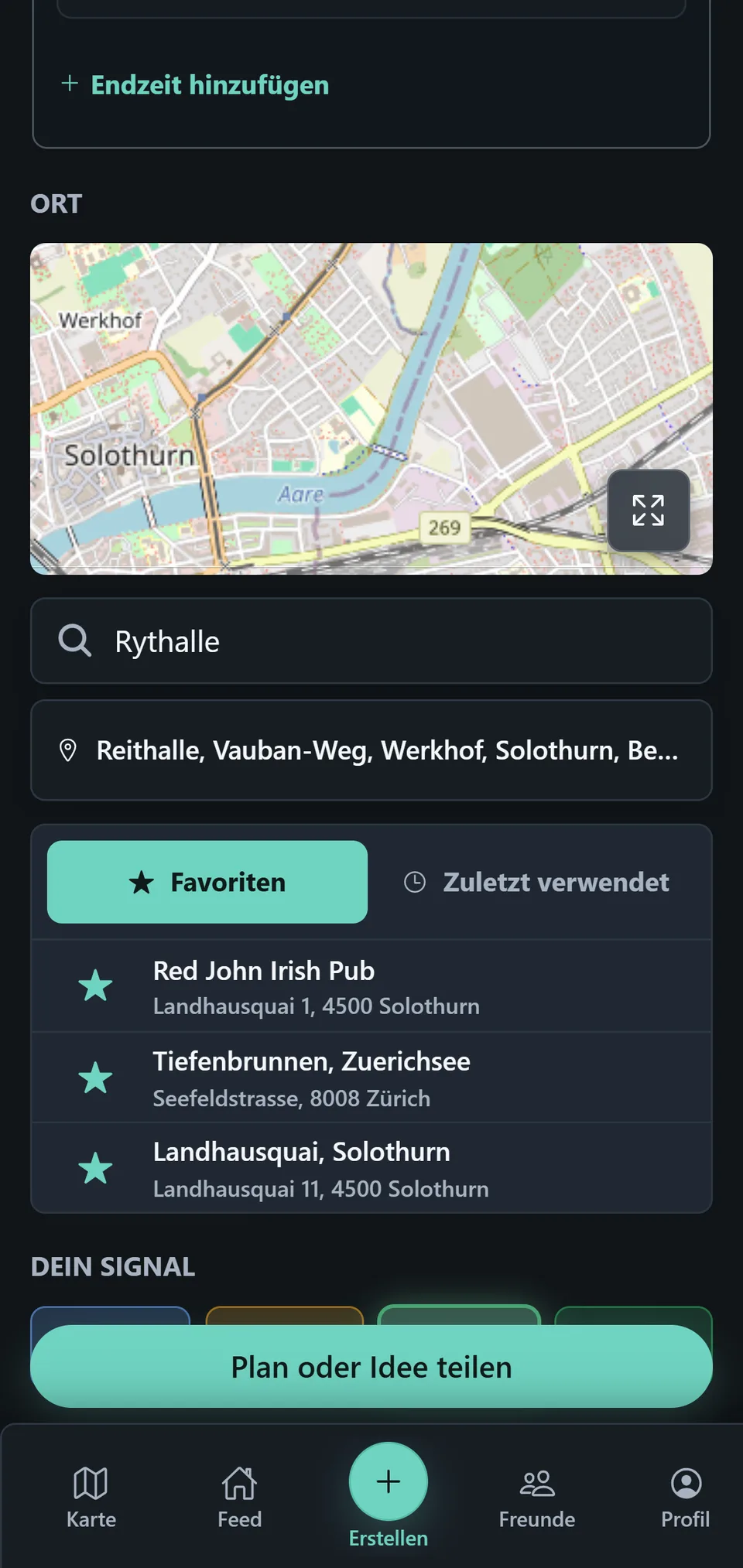
Favorites
These are places where you have created plans more often. PTB derives them from how often you previously used that exact place for a plan.
Recently used
Find places that you used for a plan recently.
Search
Use the search field to find a place and select a suitable result.
Fullscreen Map
Open the Map in fullscreen to choose a place directly. Set a point and confirm the place found there. This helps when a place is easier to select visually than through search.
Change or remove a place
A selected place is not permanent. You can remove it at any time. To choose a different place, remove the current one first, then select the new one.
Where the place appears later
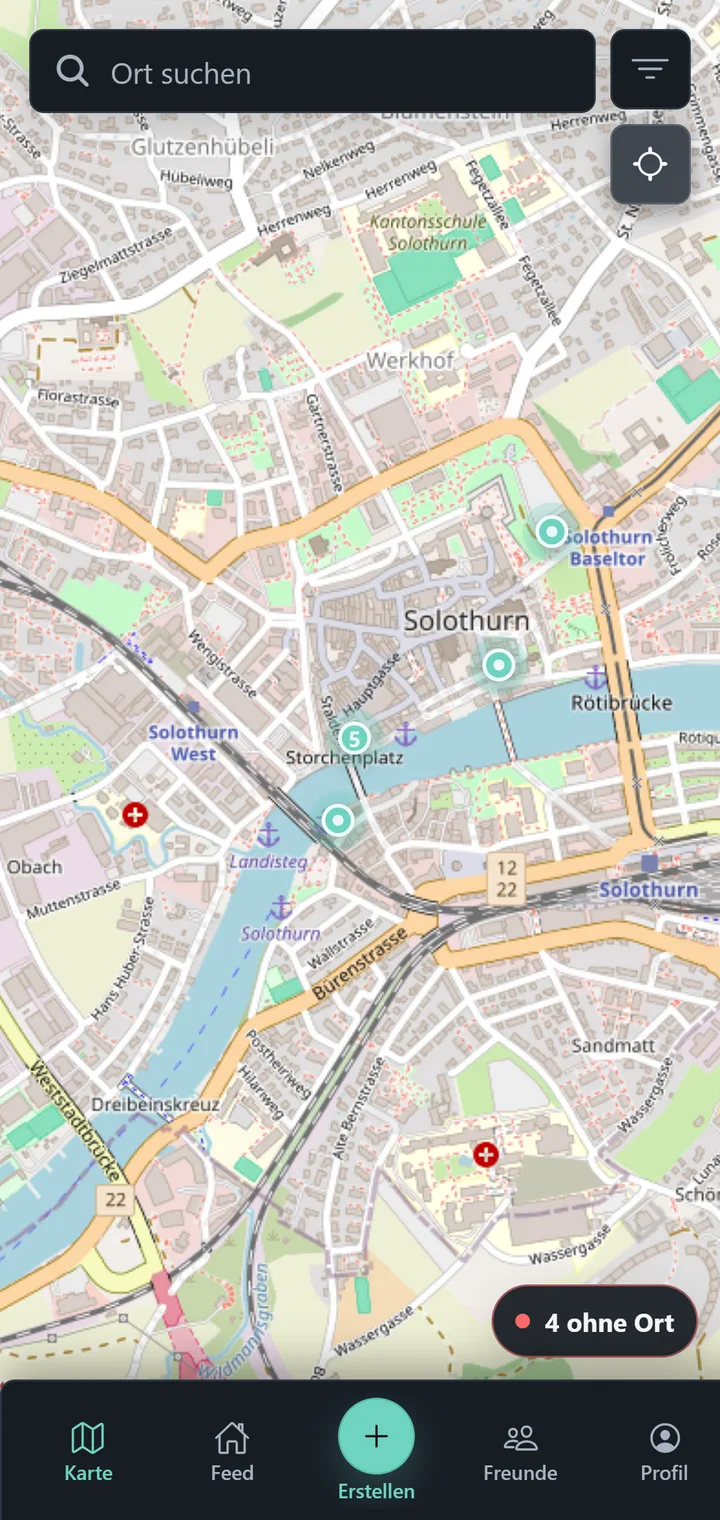
When a plan has a place, it appears on the Map. Plan Details show that same place again in a map preview.
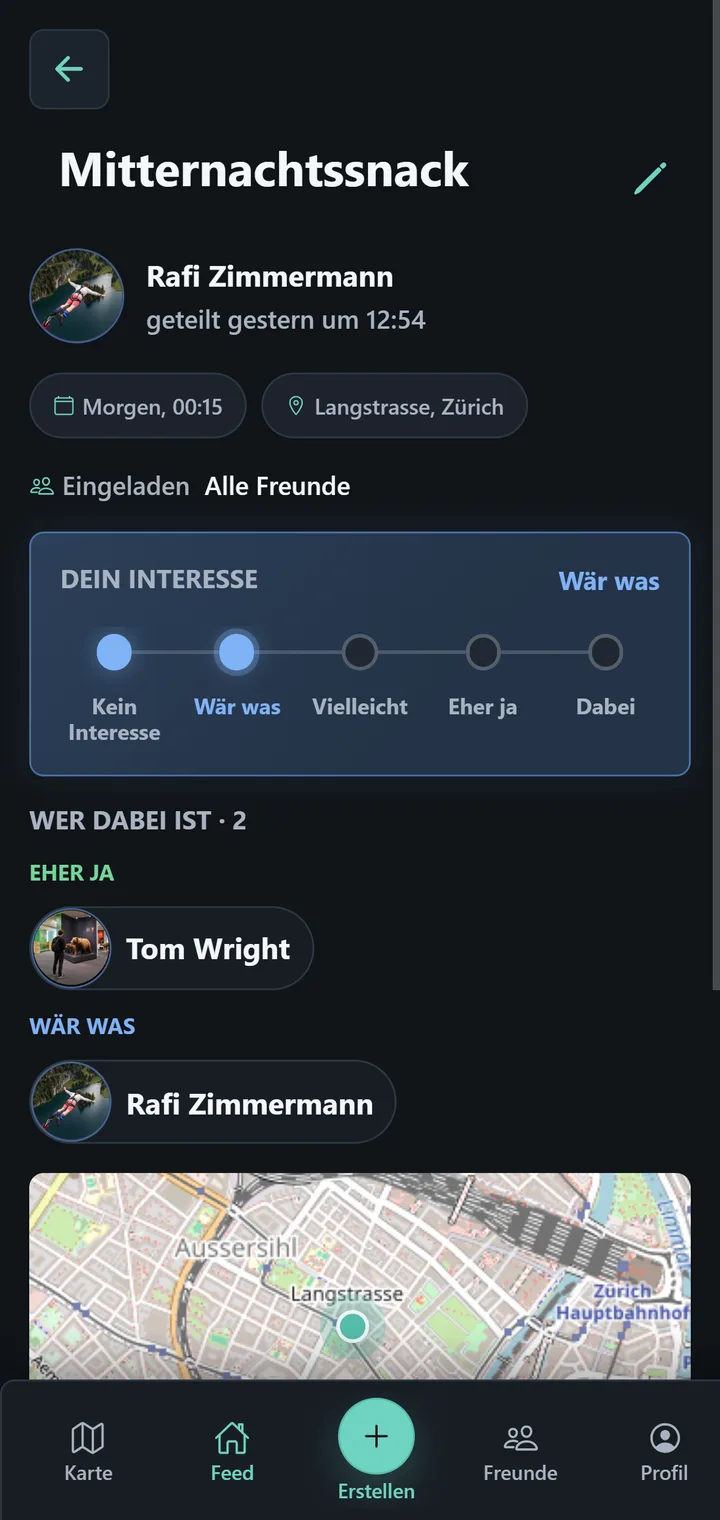
Fullscreen Map
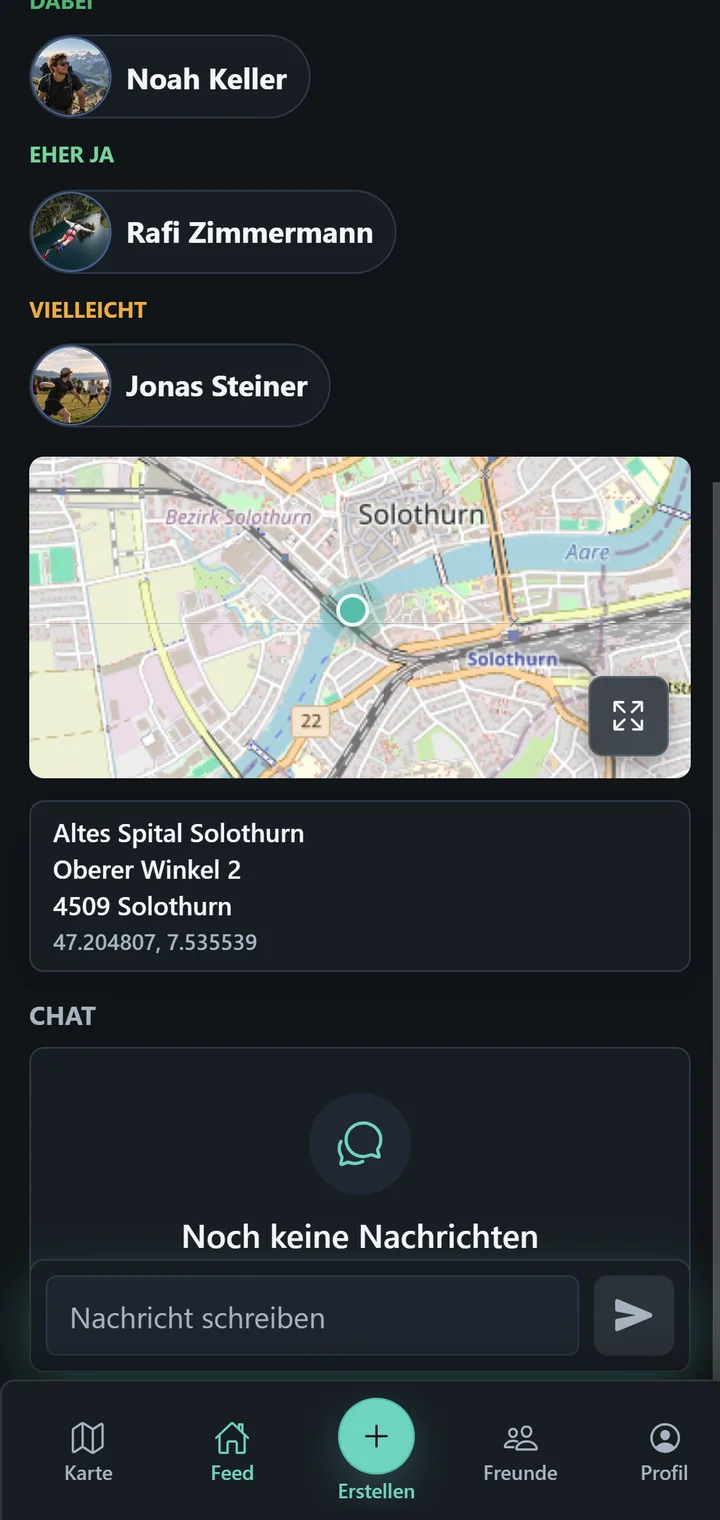
Every map preview has an icon with four corners at its bottom right. It opens the Map in fullscreen: in Plan Details, to see the place in its surroundings, and while creating a plan, to choose a place.
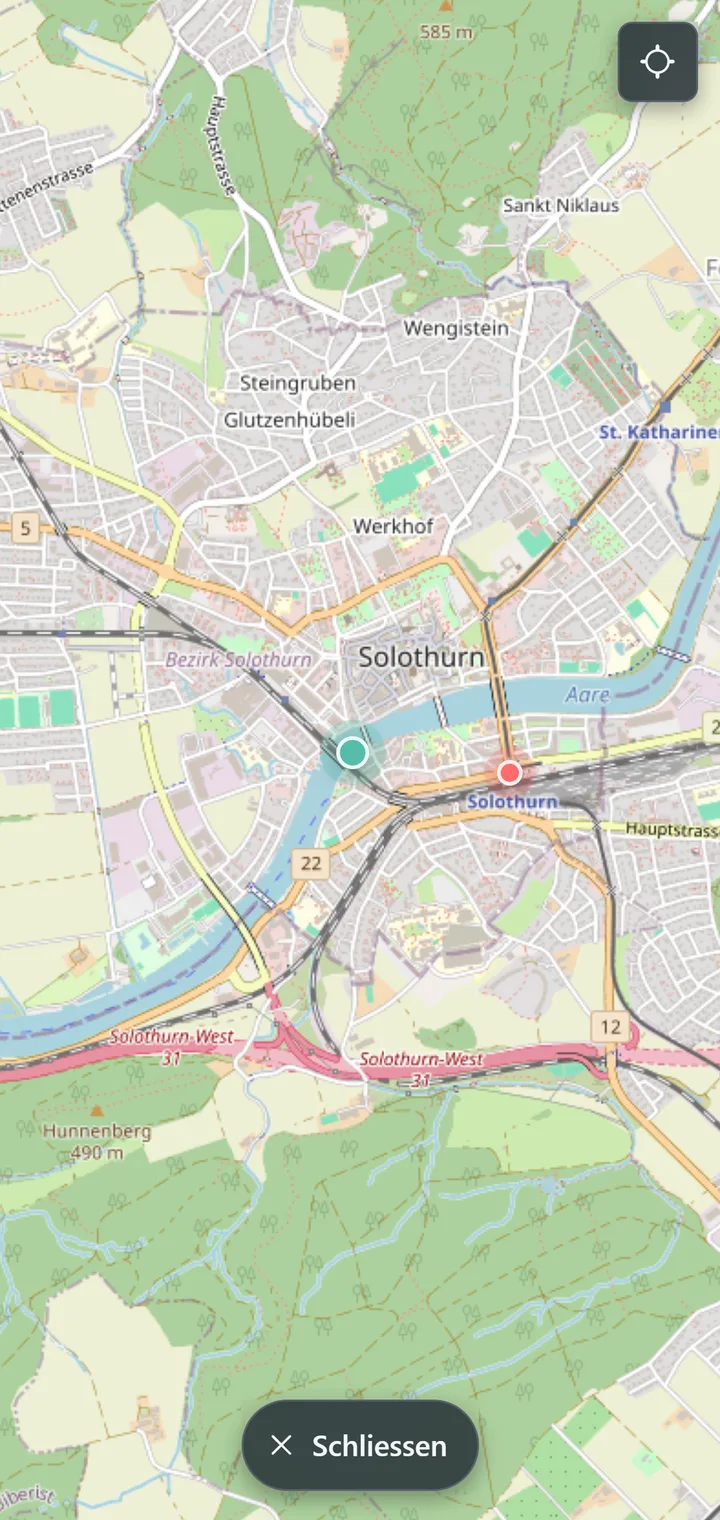
In fullscreen, the teal marker shows the plan place. If you have allowed location access, you also see your own location as a red dot and can tell at a glance how far it is to the meeting point. In Plan Details, Recenter map at the top right brings the view back to the plan place, and Close at the bottom leaves fullscreen.
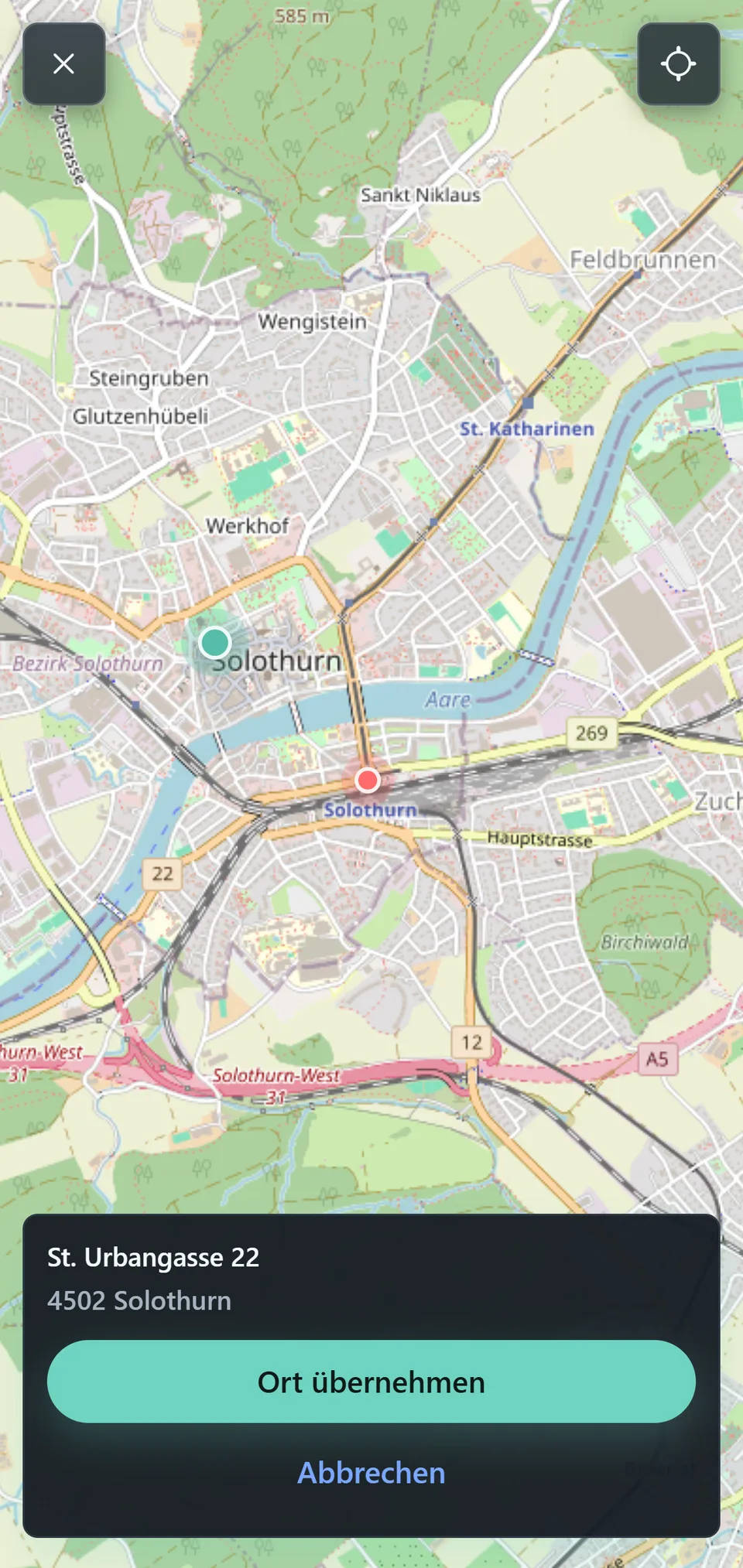
While creating a plan, tap the spot you want in fullscreen. PTB shows the address it found; Use this location sets the point as the plan place, and Cancel discards the selection. The X at the top left closes fullscreen without changing anything.
Copy coordinates
In Plan Details, a card below the map preview shows the place name, the address where known, and the coordinates in its last line. Tap it, and PTB copies the coordinates to the clipboard; the card briefly confirms this with Copied.
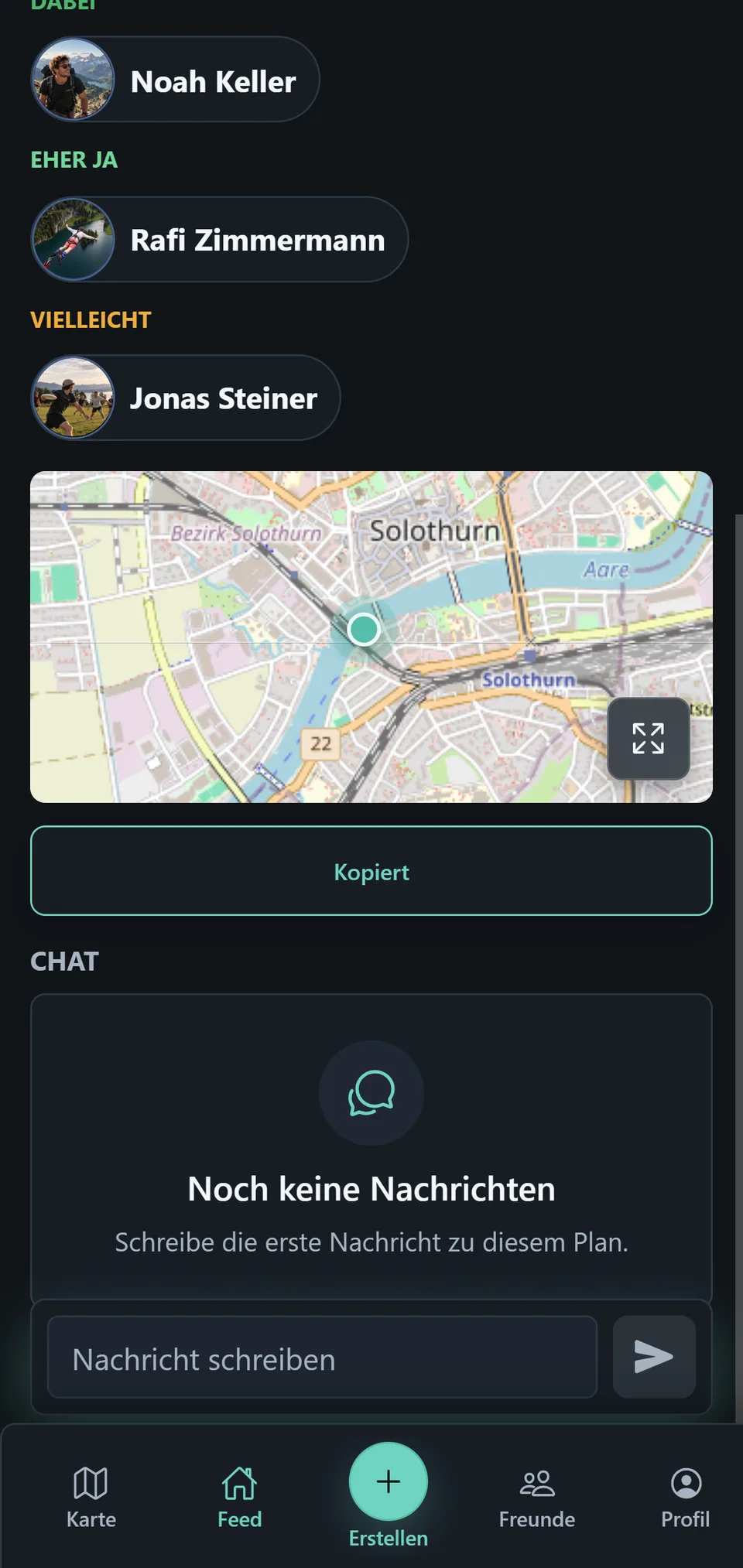
Coordinates are more exact than a place name: they identify the precise point even when a name is ambiguous or the meeting point has none. You can paste them straight into Google Maps or another map service and navigate there.